Frequently asked questions
Course booking / sign up
How do I sign up for a commissioned course?
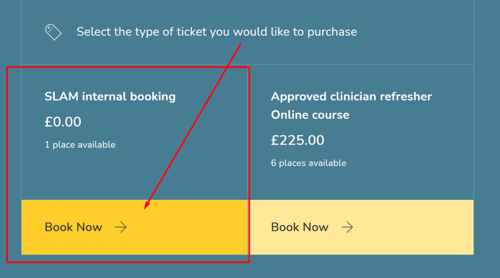
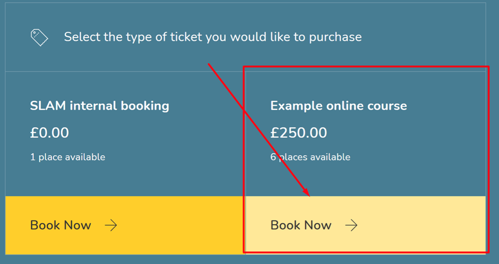
- Once you have selected a course, click on the yellow button Book now. This will take you further down the page, then click the next Book now button.
- You will then be taken to a log in page. If you already have a user account, enter your username and password. Otherwise, click Sign up now to create an account.

- Enter your email address in the first box and press Send verification code. Please complete steps 4 to 7 before filling in any other fields or pressing Create.
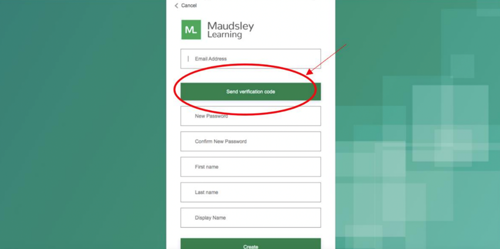
- You should receive an email from msonlineservicesteam@microsoftonline.com containing a six digit code. Please allow a few minutes and check your junk folder.
- A Verification code box will appear. Enter the code.
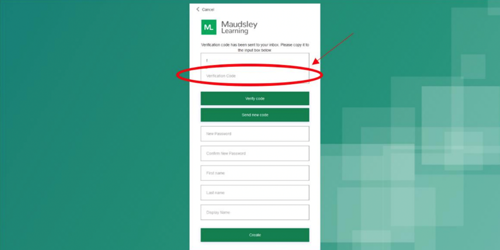
- Press Verify code. If the code is expired, click Send new code.
- Enter the rest of your information and click Create.

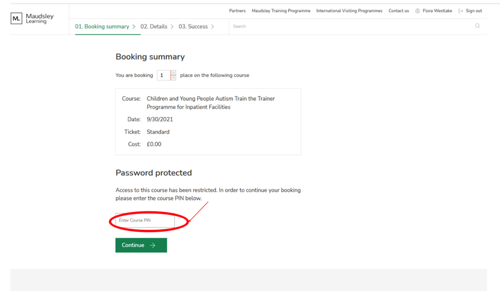
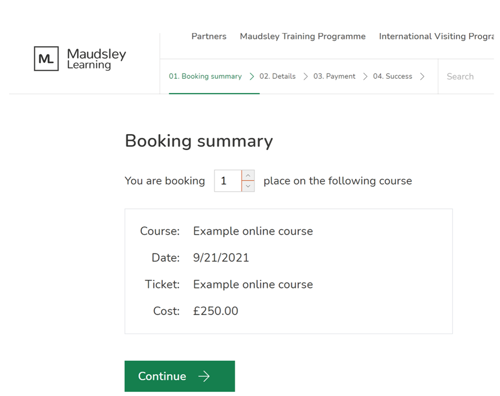
- You will then be taken to a booking summary page.
- Enter the course PIN provided by your commissioner.
- Add your details. A billing address is required but the course is free and no payment will be taken.
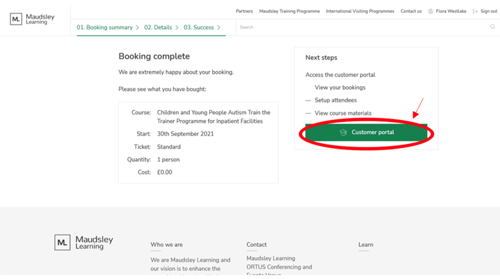
- On the booking complete page, click the green Customer Portal button.
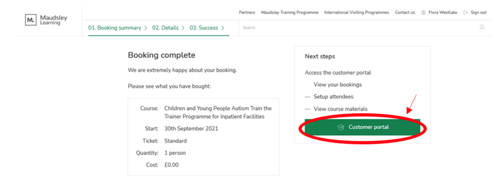
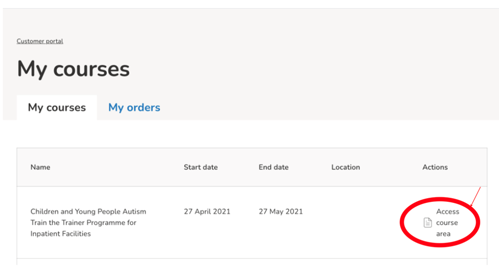
- You will see a list of your courses. Click Access course area to view resources.
How do I book for a course if I work for SLaM?
- Contact Maudsley Learning at Maudsleylearning@slam.nhs.uk.
- Complete the application form provided to you.
- A PIN will be issued to you.
- Sign up via the SLaM internal booking button on the course page.
If the internal booking option is missing, please contact us at Maudsleylearning@slam.nhs.uk.
How do I pay for a course?
- Select the course you wish to purchase.
- Scroll down to the ticket section on the course page.
- Click Book now and log in or sign up if you do not yet have an account.
- Select how many places you want to book and complete the booking form.
- After you have completed payment, you will gain access to your customer portal where your course information is held.
You can also access your portal at any time by clicking your name at the top right of the maudsleylearning.com website.
How do I book or pay for someone else?
- Follow the usual booking steps for the course you have chosen.
- When asked for attendee type, select Another person attending.
- Complete the booking using your own contact and billing details.
- Go to My orders in your customer portal.
- Click Manage attendees.
- Remove your own details as the attendee and add the other person’s information.
- The attendee will then receive a confirmation email at the address you entered for them.
How do I access the customer portal or my course or e learning?
- Visit www.maudsleylearning.com.
- Log in using the account you used to book the course.
- Click your name in the top right corner of the website.
- Select Access course area in your customer portal.
- Your course resources and information will be visible on this page.
How do I get my certificate from a completed course?
- Some courses provide a certificate of completion. These are only available once you have completed all parts of the course.
- Go to your course area, where you should see an option labelled Certificate.
- Click this option to download your certificate.
If you have any problems accessing your certificate, please email Maudsleylearning@slam.nhs.uk.
How do I get links to join my digital course?
- Joining links will be emailed to the address you used to sign up, closer to the course date.
- Some courses may also display the joining link in your course area. You can access this by logging into the website and going to your customer portal.
How do I cancel a course booking and what is the refund policy?
All cancellations must be submitted in writing by email to maudsleylearning@slam.nhs.uk. Refund eligibility is based on the date we receive your request.
Cooling off period of 14 days
- The purchaser has a 14 day cooling off period from the date of purchase to cancel and receive a full refund, provided the course has not already taken place.
- If the purchase is made 14 days or less before the course, the cooling off period still applies, but cancellation for a refund must take place before the day of the course.
- No refunds will be issued on or after the day of the course under the cooling off period.
After the cooling off period
- If the cooling off period has finished but there are still more than 28 days before the course date, the purchaser can cancel and receive a full refund.
- If the cooling off period has finished and the purchaser cancels within the 28 day period before the course date, there will be no refund.
- If the purchaser fails to attend the course, the full course fee will be retained and no refund will be given.
Please note that the 14 day cooling off period begins the day after the purchase, and the 28 day period starts the day after notification.
Rebooking policy
If a purchaser contacts Maudsley Learning to rebook their course to another date, the refund eligibility from the initial booking applies to the new booking. This means that if a purchaser rebooks the course at a time when they are not eligible for a refund for the first booking, they remain not eligible for a refund even if they later cancel the second booking within a time frame that would usually allow a refund.
Cancellations by Maudsley Learning
If Maudsley Learning cancels a course, we will offer the purchaser an alternative date. If the purchaser cannot attend this alternative date, we will provide a full refund of the course fee.
If the purchaser accepts the new date, the same cancellation timelines and rules apply to the new booking as they would for any other course date.
Check if you are eligible for a refund
| Scenario | Refund eligibility |
|---|---|
| Cancellation within 14 day cooling off period | Full refund |
| Cancellation after cooling off period but more than 28 days before course | Full refund |
| Cancellation within 28 days of course | No refund |
| Cancellation on or after course day | No refund |
| Failure to attend | No refund |
| Maudsley Learning cancels the course and purchaser cannot attend new date | Full refund |
| Rebooked course where original booking was non refundable | No refund |
Please make sure you check whether you are eligible for a refund before submitting your request.
ML Finance will review your refund request and approve or reject it based on the eligibility of your application. If your request is approved, ML Finance will issue a refund form to the customer service team, who will send it to you to complete and return.
Can I book a course using a purchase order or invoice?
Individual bookings cannot be processed using a purchase order or invoice.
If you are an NHS employee and are unable to purchase a ticket and reclaim the cost through expenses, please contact your Trust Procurement team. They may be able to purchase the ticket on your behalf using a local purchase card.
The minimum threshold for block bookings of business to customer courses via purchase order and invoice is £2,500.
Account queries
How do I reset my password?
- Go to the log in page and click the Reset password link.
- Enter your email address. You will receive a verification code by email. Remember to check your spam or junk folder.
- Enter the code into the reset form and create a new password.
- Use your new password to log in to your account.
Other questions
When is this course running?
Course dates and times are listed on each course page under the course description. Please check the course page for the most up to date schedule, including upcoming dates, availability and whether additional dates may be added.
Card payment errors
If you experience any problems when making an online payment, please email maudsleylearning@slam.nhs.uk. Our team will respond as soon as possible to help you resolve the issue and complete your booking.
Are you running this course?
Yes. All courses listed on our website are run by the Maudsley Learning team. We manage the teaching, scheduling, delivery and facilitation of every course we advertise.
Are courses online or in person?
Each course page clearly states whether the course is delivered online or in person. You will find this information near the top of the course page, together with the location or online platform. If a course is offered in more than one format, the available options will be shown for you to choose from when you book.
I want to commission a course for my staff. How do I do this?
If you would like to organise training for your staff or commission a bespoke version of one of our courses, please email maudsleylearning@slam.nhs.uk. A member of the team will contact you to discuss your needs, possible course formats and next steps.
What are the IT requirements for the course?
For online courses you will need:
- A computer, laptop or tablet.
- A reliable internet connection.
- A working camera and microphone so you can see and hear the session and take part in discussions.
- Speakers or headphones so you can hear facilitators and other participants clearly.
We strongly recommend downloading the Zoom Client for Meetings, as this provides the full interactive features used during our courses: https://zoom.us/download. You will usually have an opportunity to test your set up at the start of the course during a short introduction or orientation.
What happens to the recorded footage?
Some of our digital simulation courses involve live video and audio recording as part of the learning process. This allows us to create realistic training environments and support high quality feedback.
Please note:
- Footage is never played back during the course day.
- Recordings may sometimes be used for educational, training or research purposes.
- We will always ask for your explicit consent before using any footage of you in this way. You will have the option to decline and your decision will be fully respected.
Will I have access to course recordings?
Course recordings are generally not provided to participants, especially for paid courses. If a specific course includes access to recordings after the session, this will be clearly stated on the course page and explained during the booking process.
Digital simulation: frequently asked questions
What is simulation training?
Simulation training recreates realistic clinical situations in a controlled learning environment. It uses trained actors, structured scenarios and facilitated discussion to help you practise skills safely without involving real patients.
Why simulation?
Simulation is a powerful way to develop:
- Communication skills.
- Team working.
- Leadership and decision making.
- Confidence in managing challenging or unfamiliar situations.
It provides a supportive space where you can try out different approaches, receive feedback and reflect on your practice.
What happens on a digital simulation course?
On a digital simulation course you will usually take part in a series of online scenarios. These involve:
- Simulated patients played by professional actors.
- Participants joining remotely, either to interact directly in the scenario or to observe.
- Guided debrief sessions after each scenario, led by experienced faculty.
The aim is to mirror real clinical settings as closely as possible while keeping the environment safe and focused on learning.
What is expected of me during the simulated scenario?
You will be invited to act in the scenario as you would in your usual professional role. You are not expected to pretend to be someone else or to perform perfectly.
Typically:
- One or two participants take part directly in each scenario.
- Other participants may observe with their cameras off during the scenario.
- All participants come back together afterwards for the debrief discussion.
The focus is on learning and reflection rather than on formal assessment. You are encouraged to engage honestly and at a natural pace.
How can we create a safe environment online?
Our faculty and moderators work carefully to create a psychologically safe and respectful learning environment. This includes:
- No judgement of individuals.
- Encouraging respectful listening and contribution from everyone.
- Agreeing basic ground rules at the start of the course.
Digital simulation, just like face to face simulation, is designed as an opportunity for shared learning and reflection. It is not used as a test of your competence.
What is expected during the debrief?
The debrief is where most of the learning takes place. After each scenario, the group comes together to:
- Reflect on what happened in the scenario.
- Share different perspectives and experiences.
- Identify what went well and what could be done differently next time.
Facilitators use a structured debrief model to guide the conversation and help you translate insights into your everyday practice.
What are the IT requirements for the simulation course?
To take part in digital simulation, you will need:
- A computer or laptop with a stable internet connection.
- A working camera and microphone so you can be seen and heard clearly.
- Access to Zoom or the platform specified in your joining instructions.
- A quiet and private space where you can concentrate and speak freely.
There will usually be a short platform orientation and technical check at the start of the course so that any issues can be identified and resolved early.